
Tasks and the Task Closer
Last updated on
Tasks track work: Open → In progress → Completed, each with as many notes as you need. They appear on the account, the Tasks dashboard (one tab per status) and Today's Focus.
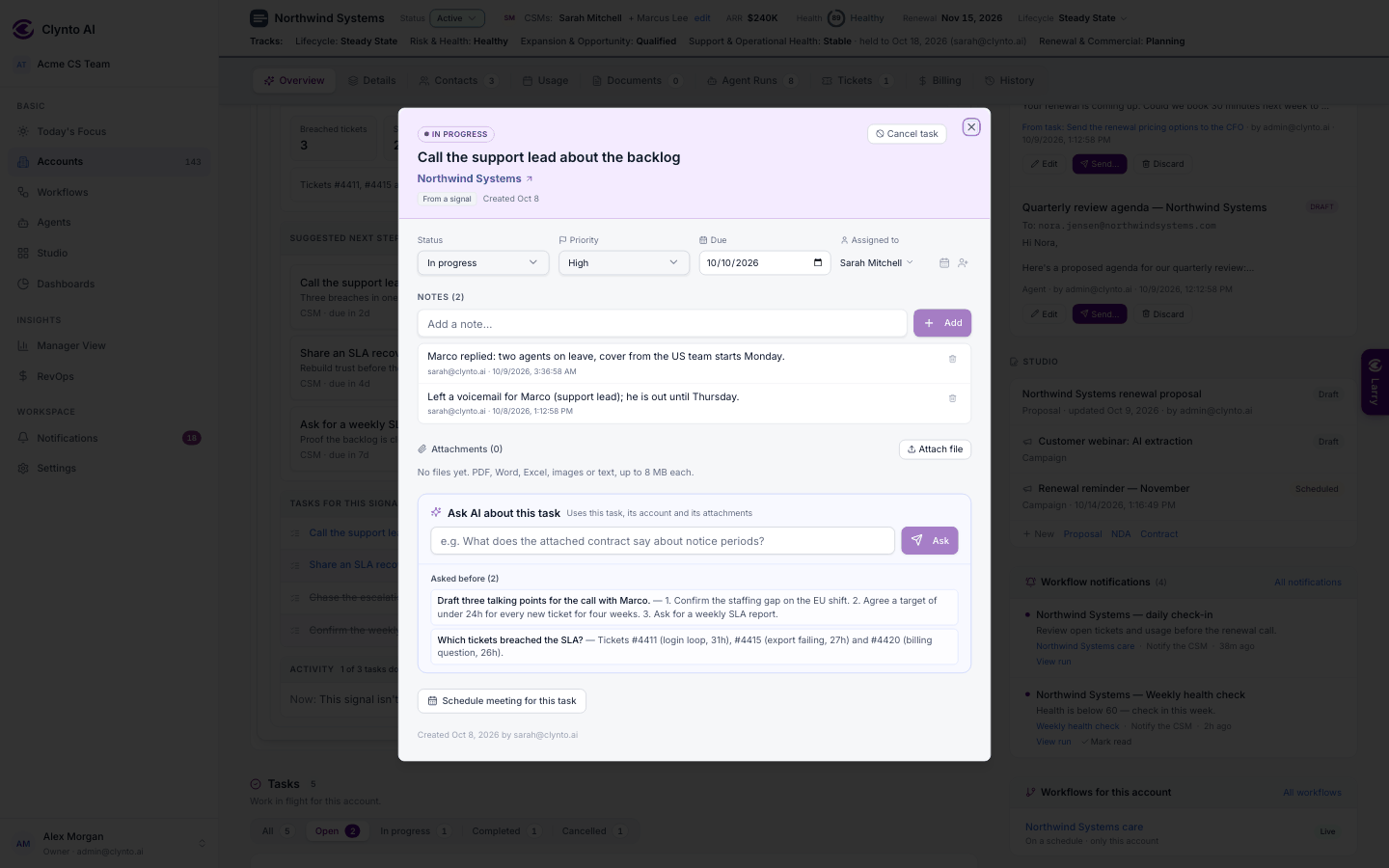
Every task list — the Tasks dashboard, the account Overview and its View all popup, Today's Focus My tasks, the drill-down popups, the Customer 360 tasks popup, the Scheduler's Open tasks and the task detail — shows:
- a source chip: Workflow · name, Agent · name, Added by person, Larry, CSV import, From a signal or Clynto · Usage monitor (the Generate QBR quick action's tasks show "Agent · QBR Drafter");
- the Created date;
- Reschedule (pick a new due date) and Delegate (pick a teammate or type an email). Both update the row in place; viewers don't see them.
The account Overview shows the top 5 tasks with the same row as the Tasks dashboard; View all N tasks opens the rest in a popup.
One task window everywhere. Wherever you open a task, you get the same full window: status, priority, due date, assignee (with Reschedule and Delegate), description, subtasks, notes (add and delete), attachments, Ask AI, source and created date. Opened from the Scheduler it also has Schedule meeting for this task.
Ask AI results you can find again. Under each Ask AI answer: Save to task notes or Save to account documents (Larry can read it there too) — the toast says "Saved to … · Open". Each "Get it done" button names its type first ("Draft email: …", "Change due date…") under the hint "Suggested by AI — nothing happens until you confirm", and after you confirm, a link opens the exact draft or subtasks. Draft email: … opens an email popup (buttons always on screen, the email in a white card with To/Cc/Bcc — your default Cc/Bcc already filled in — Subject and Message, plus Rewrite with AI and templates): Save draft puts it in the account's Email drafts at once as "From task: …"; Send asks you to confirm, then really sends it from your own connected Gmail or Outlook (recorded as sent only once your mailbox accepts it; a refusal leaves it in Email drafts and shows Failed to send) and files it like any other send (a conversation on the Tickets tab, a task note, account History) and asks whether to close the task. Without a connected mailbox, Send is off and the popup links to Settings → Email configuration → My mailbox. Run agent, Larry, Compose's Write with AI, Workflow Run now and report downloads show the same "Saved … · Open" link.
Follow-through: "close the task?"
Clynto notices when a task's work is done and asks; it never closes a task on its own.
- After an email drafted for a task goes to your mailbox: "The email to X is in your Gmail drafts. Once you've sent it, close the task 'Y'?" — or "Email sent to X…" once the Sent-folder sync sees it go out.
- The same after you schedule a meeting from a task, or save an AI deliverable for it.
- Every 15 minutes Clynto also looks for tasks that seem done elsewhere: "N tasks look done — review" on Today's Focus, plus a notification.
Yes closes the task with the evidence attached. Not yet keeps it open and never asks again about that same email or meeting. When the last task for a signal closes, the signal follow-through appears (see Signals).
The Task Closer sweeps open tasks on demand — Run Task Closer AI on the Tasks dashboard. For each task it either closes it when it finds proof of completion in signals, notes or agent runs (every closure must cite its evidence), adds a fresh evidence note when there's news but nothing conclusive, or leaves it alone. Runs are audit-logged.
The Approvals queue
Everything from a workflow step set to Needs approval (and High-Touch Task Closer closures) waits here, in the Approvals tab under Notifications (also at /approvals).
Creating a workflow
Create workflow on the Workflows page opens a blank canvas with a Generate with AI panel on top: "What workflow do you want to create today?"