
Building your own agent
Last updated on
On the Agents page click New agent.
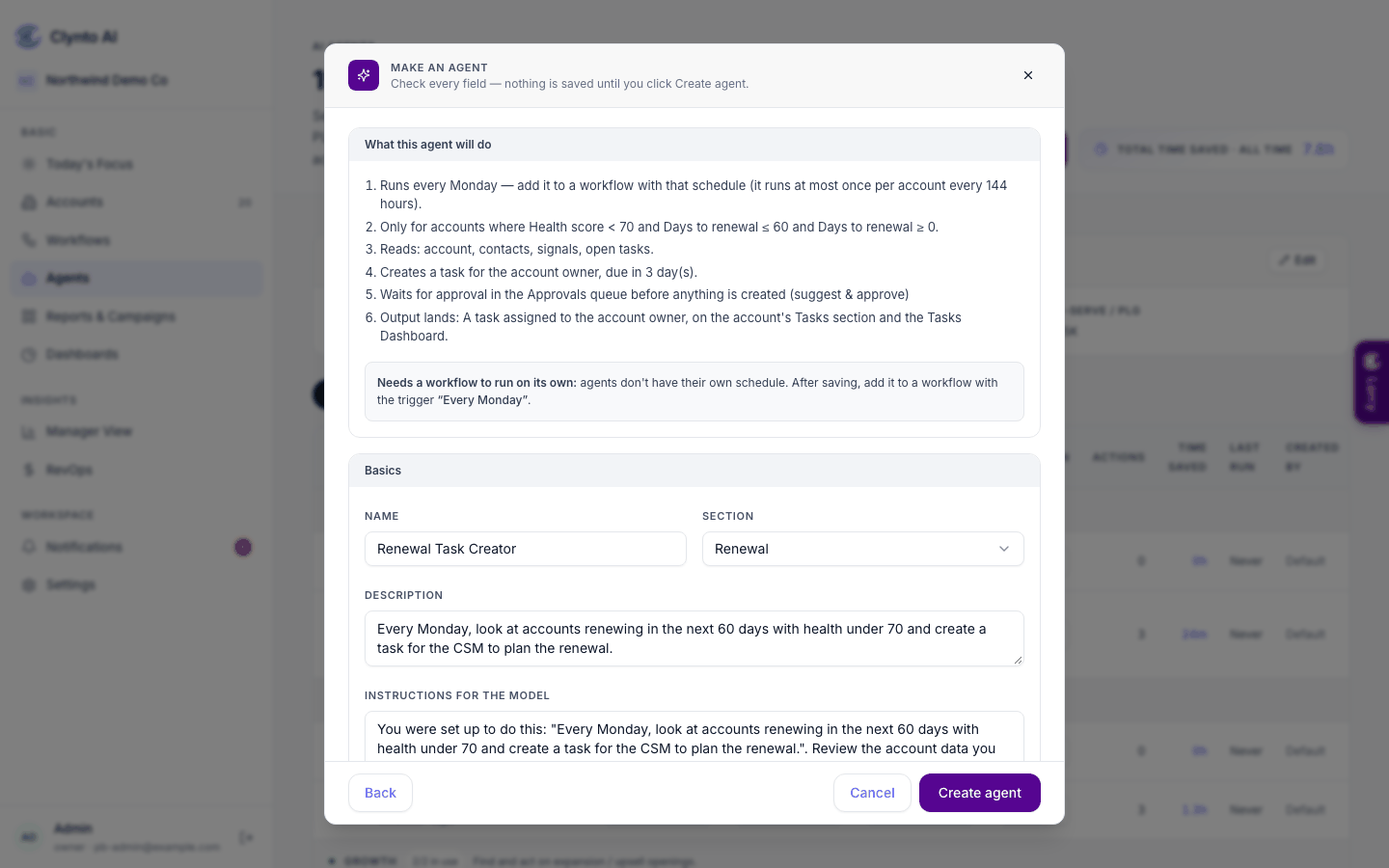
- Describe it in a sentence or two — "every Monday, check accounts renewing in 60 days with health under 70 and create a task for the CSM". Click Generate agent. (Or Fill in the form yourself.)
- Review the preview. Nothing is saved yet. It opens with What this agent will do in numbered plain-language steps, then every field, all editable: Basics (name, section, description, instructions for the model), Data and accounts (what it reads, and "only run on accounts where…"), Output and timing (a notification, task, signal or email draft; when it runs; how often per account; minutes saved per output) and its Safety rules. What happens to its output is set on the workflow step that uses it.
- Answer anything missing. "A few details are missing" asks only for what the description didn't say.
- Create agent.
Clynto warns you if the new agent overlaps one you already have, because two agents doing the same job double-propose actions. If the AI can't be reached, the draft is built from a template using the words in your description, and a banner tells you to check every field.
Custom agents run in workflows
Agents don't have their own clock. When an agent should run on its own, the preview says so and suggests the trigger to use ("Needs a workflow to run on its own"). Add it to a workflow — the agent picker on the canvas lists your custom agents, and Create a new agent… opens this same form right on the canvas. In a workflow, a custom agent:
- skips accounts that don't match its condition, without calling the model;
- reads only the data it declares;
- produces exactly one output of its type, which goes where the workflow step says, like any built-in agent (Approvals, notification or done);
- respects its "at most once per account every N hours" limit.
"Created by"
The Workflows page has All, System workflows and Custom workflows tabs (with counts). System workflows holds a card for every signal Clynto raises on its own and for the four default workflows that raise no signal; Custom holds only the workflows your team creates. System workflows shows every signal Clynto raises on its own as one workflow: when it is checked (and you can change that schedule there), which profiles get it and at what severity (the same rules as Settings → Signal rules), the agent behind it, and what runs after it for each profile, with a switch to turn that reaction on or off. Detection itself is unchanged.
Agents are cards with All / System / Custom tabs (with counts): System means built in, Custom is what your team created. Each card shows the workflows that use the agent; click it for the details. The Workflows page has its own tabs, described above.
Note
This is prompting, not training. Every agent calls the same model fresh each time with its instructions and the account's live data. To change how an agent behaves, sharpen its instructions — paste a worked example in if you want it followed closely.
Step settings per profile
On the workflow canvas, each agent and action step shows a small chip with its setting; click the step to change it.
The Approvals queue
Everything from a workflow step set to Needs approval (and High-Touch Task Closer closures) waits here, in the Approvals tab under Notifications (also at /approvals).