
Today's Focus
Last updated on
/today is the first item in the navigation. A CSM sees the accounts they are a CSM on. The Owner and Managers get a My accounts / Team / All switch in the header: Team is every account that has a CSM assigned (there are no reporting lines yet), All is the whole workspace. If you aren't a CSM on any account it opens on All, otherwise on My accounts, and it remembers your choice. Every card, number, popup and the briefing follow the switch together.
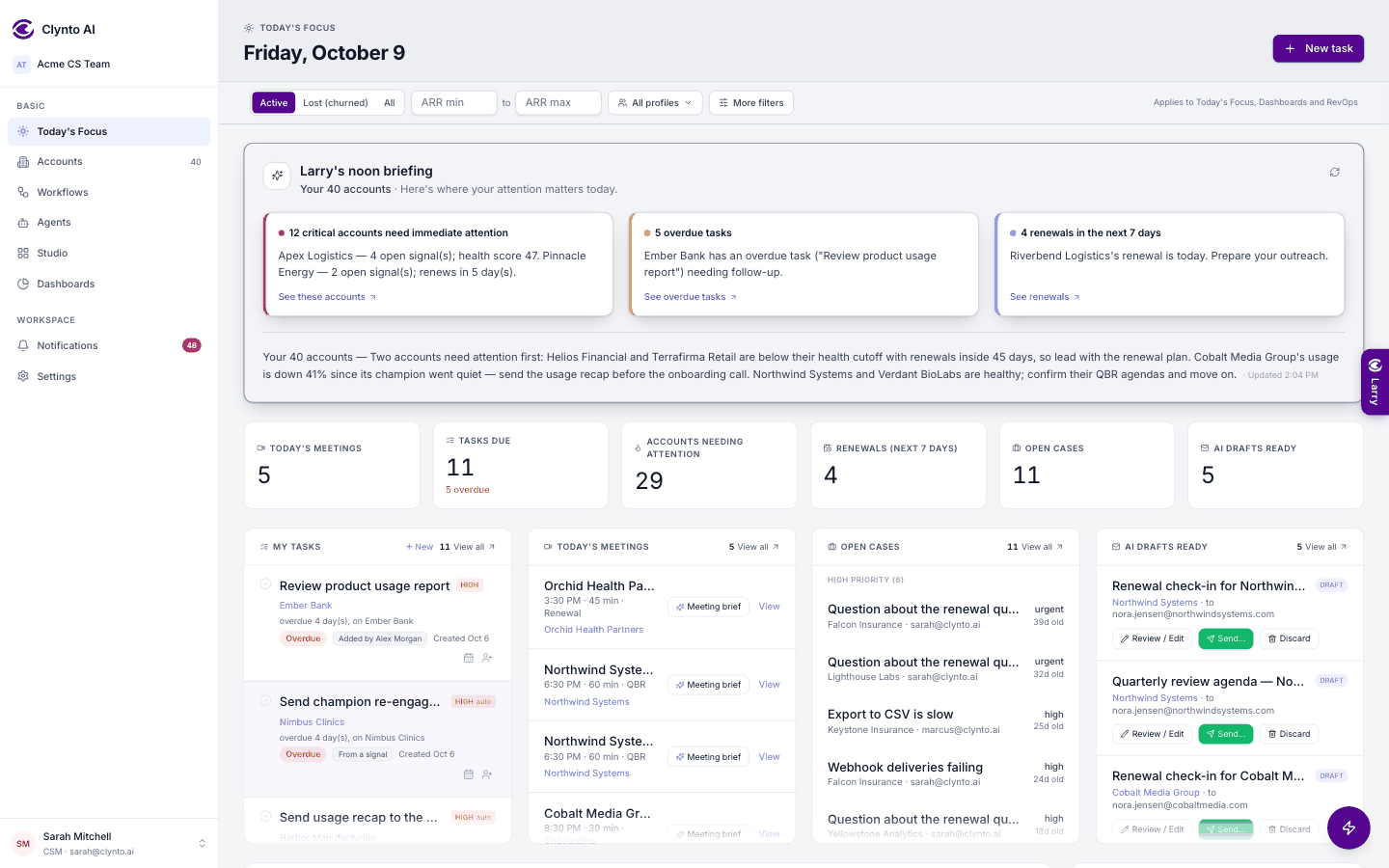
- Larry's briefing at the top (morning, afternoon or night) says whose accounts it covers ("Your 12 accounts", "Across all 120 accounts") and shows up to three boxes: accounts that need immediate attention, overdue tasks and renewals this week, each a white card standing out on the tinted briefing, with a link to the list. Below them Larry writes a short summary; the refresh icon writes it again. When nothing is urgent you get "Nothing urgent right now" and one plain line about what is there (open signals, open cases) — no AI involved, so nothing to refresh.
- Stat cards — Today's meetings, Tasks due (with overdue), Needs attention, Renewals this week, Open cases and, when they apply, Approvals awaiting you and AI drafts ready. Click any card to see the list behind it. A card showing 0 isn't clickable, and sections with nothing in them have no View all.
- AI Priority Queue, full width above the work cards — your highest-risk accounts ranked, with the top risk reason, ARR at stake, health and renewal.
- My activity — the button beside More filters opens a large popup: what you did today (tasks, signals, emails you sent) and what of yours is still pending. Switch to Yesterday, Last 7 / 30 days, This month or your own dates; a range is grouped by date, each date in its own colour, with a strip showing the busy days.
- My tasks, Today's meetings, Open cases and AI drafts ready sit side by side as four equal cards (two on a medium screen, one on a narrow one). A long list scrolls inside its card, with a soft fade at the bottom; View all opens the whole list.
- New task in the header (Account reads "Select account…" with one search box inside; Assigned to starts as "Your name (me)"), and My tasks — filter by overdue, high priority or who it's waiting on; each task shows where it came from and when it was created; Mark done, Reschedule or Delegate without leaving the page.
- "N tasks look done — review" — appears when Clynto spots work that seems to finish one of your tasks (an email sent, a meeting scheduled, a QBR drafted). Review each one: Yes closes it with the evidence, Not yet leaves it open. Nothing closes on its own.
- Today's meetings — from your connected calendar and meetings created in Clynto, linked to accounts by attendee domain, with talking points, suggested questions, risks and upsell ideas to prepare.
- AI drafts ready — Review / Edit (or Send…) opens the shared draft editor: To/Cc/Bcc chips with contact suggestions and your default Cc/Bcc pre-filled, subject and body, with your signature already at the bottom of the body to edit (the same editor as the account's Email drafts card, Settings → Drafts, Approvals, Ask AI and Compose). Send really sends it from your own mailbox after you confirm.
- Workflow notifications — unread messages from your workflows' Notify steps about your accounts in the last 7 days, each with the workflow, the step, links to the workflow and its runs, and Mark read.
- Track changes waiting for confirmation — journey moves that need a person (Risk & Health entering Escalation or leaving Recovery, Expansion to Qualified), with Confirm and Dismiss.
- Open cases, Approvals awaiting you, Renewals this week, Accounts needing attention, AI insights and Recent signals & automations sit in balanced columns that fill the page (no empty gap at the left when a list is short), and the page always scrolls even with the pointer over a card — each item links to where you act on it; approvals can be decided in place.
Quick actions (the lightning button, bottom right)
Every action opens in a popup, so you never leave the page:
| Action | What it does |
|---|---|
| Search customer | Type a name and open the account. |
| Create task | The usual New task form. |
| Flag a risk | Tell Clynto something its rules can't see. Pick a real signal type and add a note. It counts toward health and starts that type's workflows within 15 minutes, and Clynto never closes it on its own. If the account already has that type open, you can Add my note to it. (Replaces "Create signal".) |
| Generate QBR | Runs the real QBR Drafter for a 30, 60, 90 or 180-day window and shows the draft (saved as a task). |
| Schedule meeting | The Scheduler's own form. Attendees: the account's contacts as checkboxes, teammates suggested, or any email typed. It doesn't send calendar invites. |
| Compose email | To/Cc/Bcc chips with the account's contacts suggested; Write with AI from a short prompt (uses your tone guide and signature; gives up after 30 seconds); or Use a template. It saves a draft only — find it in Today's Focus → AI drafts ready, Settings → Email configuration → Drafts and the account's Email drafts card. Cc/Bcc start with your default Cc/Bcc (CC/BCC rules) for the account you pick, and go out exactly as you leave them. A new address on the account's domain becomes a contact automatically; an unknown outside address becomes a Larry Time question; your own company's addresses are ignored. |
| Create workflow | The real workflow canvas in a large popup; saving keeps it as a draft. |
| Import CSV | The import popup: Account data or Contact data. |