
Renewals and Risk
Last updated on
Both pages share the same window control: Next 30 days, Next 60 days, Next 90 days (the default) or Custom with a from and to date. Risk adds All dates. A renewal is in the window when its renewal date falls between today and the end of the window, both days included. The window is part of the URL, so a link opens the same view.
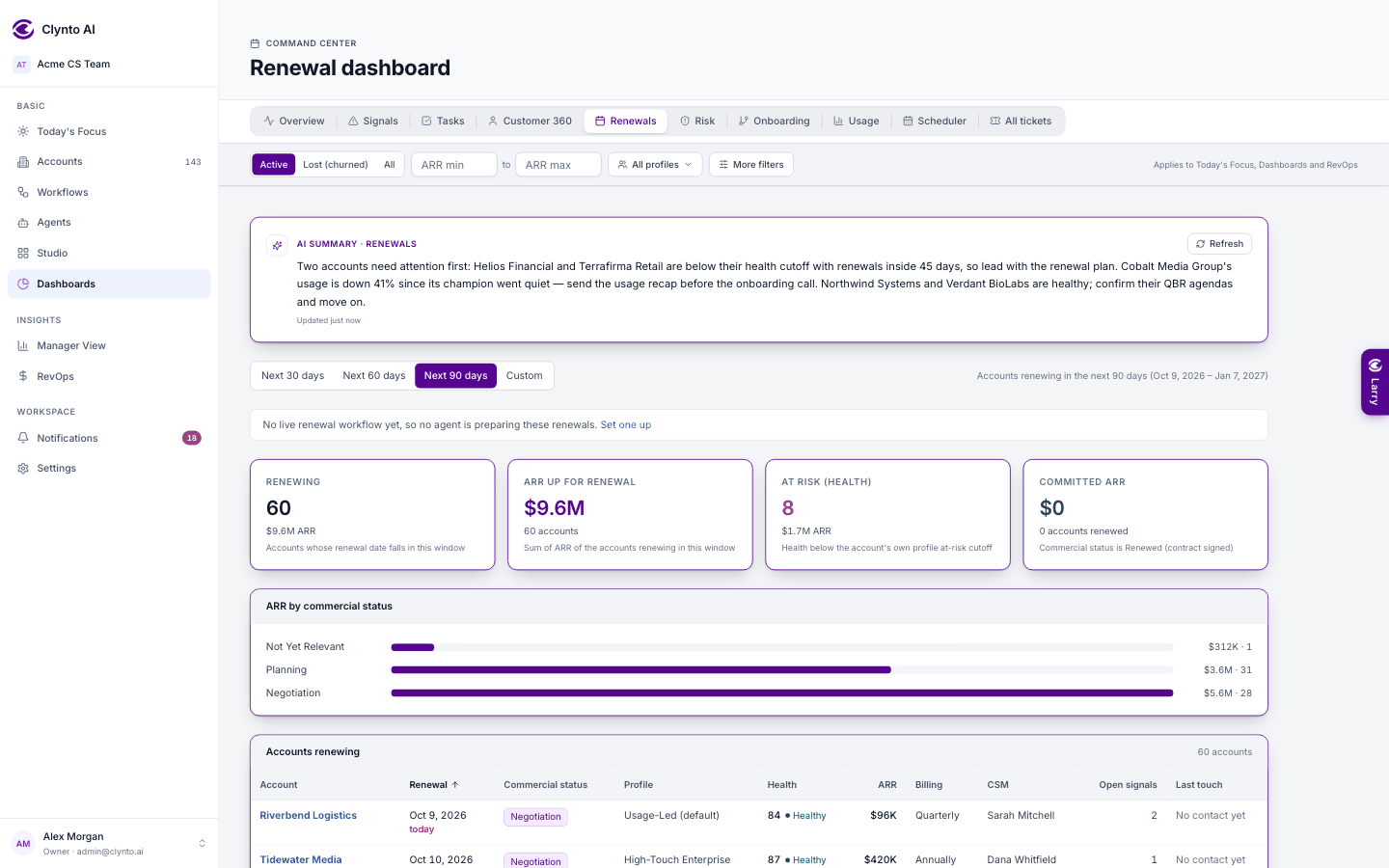
Renewals
Accounts renewing in the window, with commercial status, profile, health, ARR, billing frequency, CSM, open signals and last touch, above them summary cards — Renewing, ARR up for renewal, At risk (health) and Committed ARR (accounts whose commercial status is Renewed) — and ARR by commercial status. Click any number to open exactly those accounts in a popup. A note shows which renewal workflows are running — or, if none is live, links you to set one up so an agent prepares each renewal.
Views
Day, Week, Month and List (a paginated agenda). Today jumps back; the arrows step to the previous or next period. Click an empty slot to add a meeting at that time, or an event to open it.
The side panel
- A mini calendar — days with events are marked; click one to go there.
- Show: Mine or Team. Event types: tick Meetings, Renewals and Tasks due, each with its count. Filter by account or meeting type; Clear filters resets them.
- Upcoming — the next events, one click to open.
Keyboard shortcuts
| Key | Does |
|---|---|
| T | Today |
| ← / → | Previous / next day, week or month |
| D / W / M / L | Day, Week, Month, List view |
The portfolio filter narrows account events; meetings with no account always stay visible.
Signals and Tasks
Signals Categories — chips across the top are built from the signal types actually raised in your workspace (Support, Billing, Usage, Engagement, Health, Renewal,…
Manager View
/manager-view is the team picture, for anyone with the team.view_performance permission (admins and managers by default).