
Tickets
Last updated on
Tickets live in one place wherever they came from:
- Freshdesk — tickets keep their Freshdesk number (FD-123), status and priority.
- Inbound customer email — mail from a sender whose domain matches an account is filed as a ticket with a Clynto number (CL-0001…).
- Report emails — sending a report files a closed ticket, so the send is part of the account's history.
- Emails Clynto starts — every proactive email for a task, workflow, agent or signal (sent or drafted in the CSM's mailbox) opens a conversation ticket labelled "From Clynto · Workflow: …" (or Task / Signal). The customer's reply threads into it, and a pill shows whether it really went out: Drafted — not sent yet, Sent from <mailbox> at <time>, Discarded or Not sent. Campaign emails don't create tickets.
Conversations are not support work: they never count as open cases, support counts, health or SLA. The account's Tickets tab and All tickets both have an All / Support tickets / Conversations switch.
Dashboards → All tickets and an account's Tickets tab are one ticket desk. A bar across the top has the views (All by default — every ticket — then Open (everything not resolved or closed), Pending, Waiting on customer, Working with tech, Resolved and Closed, each with a count that matches its list), + New email, the Source menu (all, support tickets, conversations), search and, on All tickets, account and date filters. Below it the list uses the full width and reads like a mail inbox; every ticket shows its reference (T-1007, FD-123) and its SLA when it's due soon or overdue. Click a ticket and it opens as a reading pane: the thread in the middle, laid out like a mail client (avatar, name, "To: …" with a details chevron, quoted text behind Show trimmed content; internal notes on a light amber row, our messages marked Sent from Clynto) under a header with Reply, Add note, Close and ⋯, with a reply bar at the bottom: open it and the reply becomes the last item of the conversation (scroll up for earlier messages), with your signature already in the body to edit; + New email in the right column writes to the same customer; and on the right the customer card (title, email, phone, location, View customer) above Properties (Type with "Suggest with AI", Status, priority, sentiment), SLA, tags, the account with Change account, everyone on the thread and other tickets from the same company. Summarize and Suggest next step ask the AI about the ticket. A link with ?ticket= opens that exact ticket, which is where notifications about a ticket take you.
Reply to customer from any ticket through your own connected mailbox. Reply is pre-filled with the requester and your workspace's default Cc/Bcc rules; Reply all also puts everyone else who was on the thread in Cc (minus you and Clynto's own addresses). To, Cc and Bcc are address chips: add as many as you need (type or paste a list separated by commas, spaces or new lines); an invalid address turns red and blocks Send, and an address you remove isn't added back when it sends. "Write with AI" drafts from the whole thread, templates are offered as starting points, your signature is appended, and you choose Send or Save to mailbox drafts.
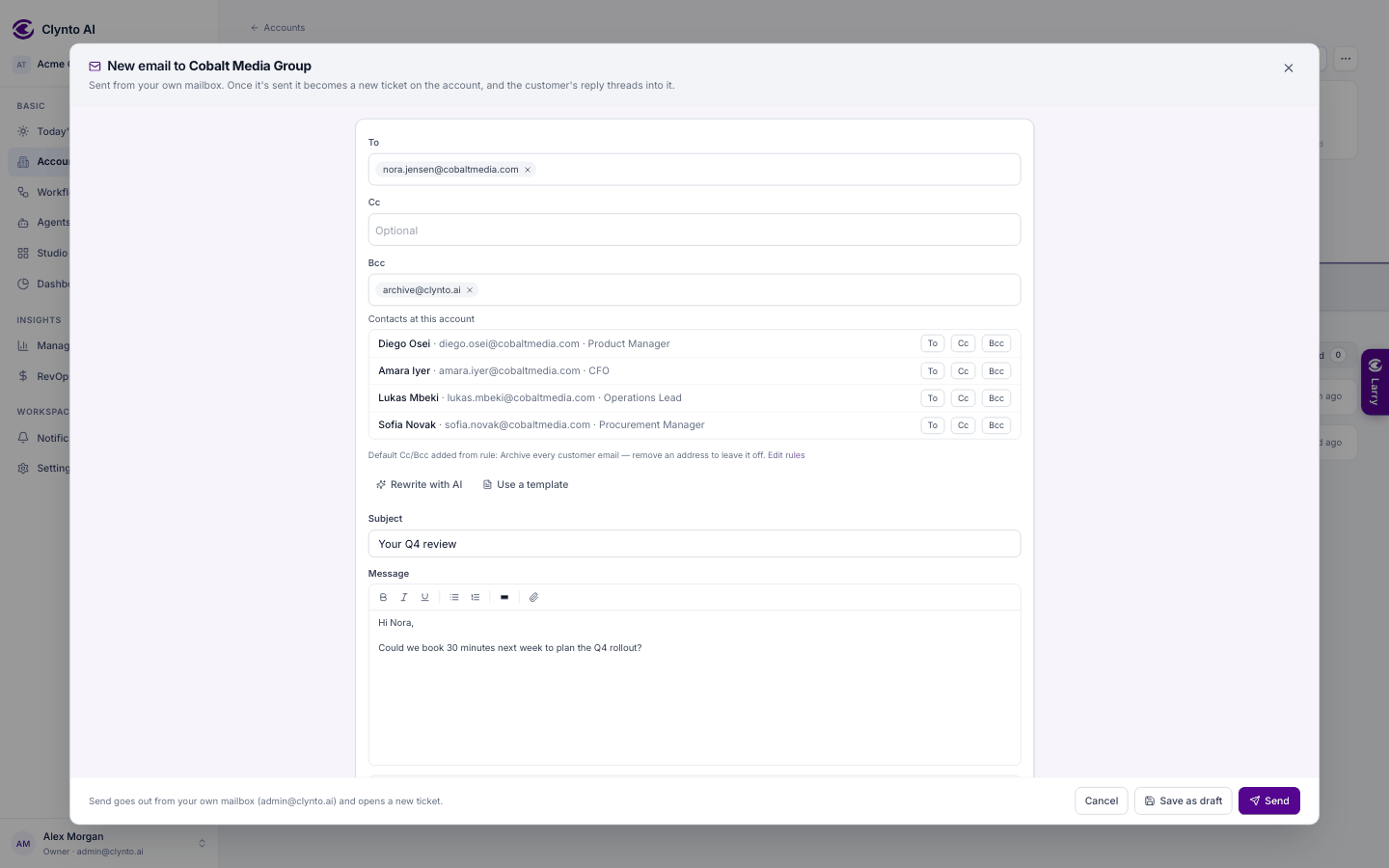
Start a new conversation with + New email — on an account's Tickets tab, and on All tickets (where you first pick the account). It opens a full composer: To with the account's contacts one click away (or type any address), Cc and Bcc pre-filled with your workspace's default Cc/Bcc (remove any you don't want), Rewrite with AI and Use a template, a subject, a formatted message with attachments, and a preview of the signature that's added. Send asks you to confirm, then sends from your own mailbox — and the email becomes a new ticket on the account, labelled "From Clynto · Composed in Tickets", waiting on the customer, which opens straight away. The customer's reply threads into it. Save as draft puts it in the account's Email drafts instead. If your mailbox refuses the email, nothing is marked sent and no ticket opens: your text stays in the composer (and in Email drafts) so you can try again. You need Send outbound email, and a CSM can only send on their own accounts; with no mailbox connected, the composer says so and points to Settings → My mailbox.
Internal note — only your team sees it; it is never emailed.
How replies find their ticket
A customer reply joins its ticket by the email's thread headers. When those are missing, a subject starting Re: or Fwd: (or AW:, SV:…) joins the ticket on the same account with the same subject from the last 60 days — but only when the sender's company is already on that ticket, so "Re: Invoice" from one customer never lands on another's. The message is marked "matched by its subject line".
Merging tickets
Filter by status with the dropdown beside the search box (every status, including Waiting on customer, Waiting on third party and Working with tech, with counts). Waiting on customer can be picked in the ticket's Status list; on a Freshdesk ticket it holds until Freshdesk's own status changes. Edit the subject with the pencil next to it; the new title is Clynto's own (Freshdesk is not changed and a sync will not overwrite it). Replies you send from Clynto always show in the conversation, even on a Freshdesk ticket.
Merge into (under "Other tickets from this company") picks another ticket on the same account: the merged one is closed, its messages move onto the other, and later replies to either land on the one that's kept. Tickets merged in Freshdesk are recognised on the next sync and merged the same way. Merged tickets drop out of the lists; opening one points to where its messages went.
Note
Type and Status edits change Clynto's copy; they don't write back to Freshdesk. Attachments aren't ingested, so an inline image referenced by cid: (common from Outlook) shows as broken.