
Importing accounts from CSV or Excel
Last updated on
Any .csv or .xlsx file up to 5 MB. Open the importer from Settings → Integrations (Import a file) or the Import CSV quick action on Today's Focus. It opens in a popup and first asks what the file contains:
- Account data — one row per account. This is the importer described below. Clynto maps the columns even when they are named unusually.
- Contact data — one row per person (see "Importing contacts" at the end of this section).
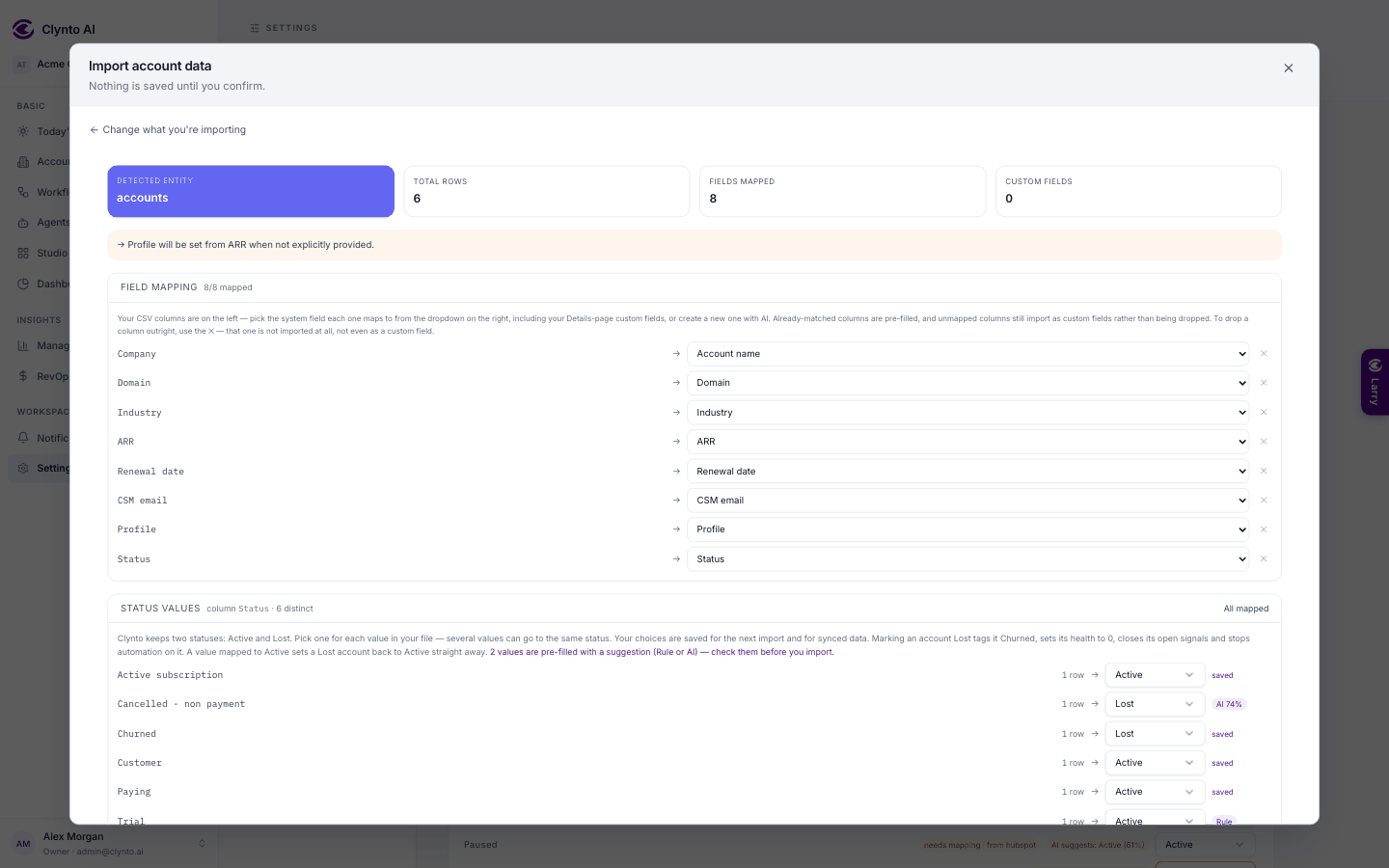
Step 1 — Preview
Upload the file. You see what Clynto detected and how confident it is, where every column is going, the rows that will be created, updated or rejected, and a sample of the mapped rows.
Step 2 — Adjust the mapping
Each column says where it's going and why: remembered from your last import, detected automatically, or set by you. Override any of them. Status values are pre-filled from your status mapping (see "Active and Lost") so you confirm them before anything is written.
Step 3 — Confirm
The import runs and reports what was created, what was updated, and every row that failed with its own reason. A bad row never stops the rest of the file.
What it will and won't overwrite
Matching goes exact name → domain → fuzzy name (Inc, Ltd, GmbH and punctuation ignored). A match is updated, never duplicated — but name, health score, profile and journey stage are never overwritten, because those are either yours to curate or computed.
What it fills in for you
- Profile from your profiles' ARR ranges when the file doesn't say.
- ARR from MRR × 12 when only MRR is present.
- Contacts from POC Name / POC Email / POC Designation columns, as real contact records.
- Journey stage from free text ("Live", "Go Live", "go-live" all land on the same stage).
- New CSMs: an unknown CSM email becomes a pending invite with an invite email to choose a password, and admins are notified to review it.
- Usage allowance: a "Usage allowance (credits)" column (a number, or "Unlimited") and an "Allowance period" column (month, Monthly, M… all work) set the account's credits allowance. A value set by hand on the account still wins.
Tip
Numbers may carry $, commas and %; several date formats are accepted; domains are reduced to the bare host name.
Importing contacts
Choose Contact data. The steps are Upload → Map columns → Match accounts → Preview → Done.
Map columns. Clynto suggests a field for every column and remembers your choices for next time. The dropdown is grouped and searchable:
- Contact (listed first) — Full name, First name and Last name (joined when there's no full name), Email, Phone, Mobile, Job title, Role, Department, Seniority, Role tags (champion, decision maker, economic buyer, influencer, technical contact, billing, power user), Champion (yes / no), LinkedIn URL, City, Country, Time zone, Notes, Last seen / last active (date) and Status (active / left company).
- Account match — Account ID (recommended: unique), then Account name, then Account domain / website: how each row finds its account.
- Custom — save a column as a contact or account custom field. Any column with no matching field is saved as a contact custom field by default and shown under the contact's Details; set it to Ignore to leave it out (Clynto remembers that too).
- Account details (optional — fills blanks on the account) — collapsed until you open it or search: industry, region, ARR, MRR, profile, seats, CSM, renewal and start dates, payment frequency, usage allowance and period, company LinkedIn and more. They are written to the matched or new account only where it has no value yet — never overwriting.
Match accounts. Every row must belong to an account. Clynto looks at each distinct account value once and tries, in order: the Account ID (exact only — when a row has an ID it wins over the name; an ID that matches no account shows ID not found for you to resolve, never a guess), the account you picked for that value in an earlier import, the exact name, the name without Inc/Ltd/punctuation, a domain (the value itself, the domain column, then the rows' work-email domain), and finally a similar name with a confidence %. Whatever is still unmatched is sent to the AI in the background (up to 60 values, each with a short list of likely accounts); its suggestions appear as they arrive and are only applied if you accept them. For each value you Accept, pick an account, Create new account or Don't import these contacts.
Preview shows the rows exactly as they'll be saved — contacts to create and to update, accounts to create, account fields filled, which columns are saved as contact custom fields, and rows skipped or with warnings — before anything is written.
- A new account gets the same defaults as one you add by hand, plus website domains from the contacts' work emails (public domains like gmail.com, and your own company's domains, are ignored), and says Created from contact import.
- Contacts are matched by account + email (or account + name when there's no email), so a contact is updated, never duplicated. A blank cell never erases anything, and tags are added to existing ones.